# stadiæ
github.com/computerguided/stadiae
open → github ↗
$ man stadiæ

Stadiæ

A browser-based device- and state-diagram editor for embedded systems architects. Edits the domain model directly — components, interfaces, messages, states, choice-points, transitions — saves a compact JSON project file, and renders the diagrams via PlantUML. One HTML file. No install. No lock-in.

runs in any modern browser · exports .puml / .png / .md / .docx · git-friendly JSON save format · online or local PlantUML server
# 01 /// summary

A GUI front-end for PlantUML that speaks the domain.

Stadiæ maintains an in-memory model of your diagram — states, choice-points, interfaces, messages, transitions — and re-emits PlantUML source from scratch on every edit. You never touch PlantUML syntax unless you want to; you edit behaviour. The server renders it; you see the result.

The domain is not decoration. The tool knows that a choice-point has exactly two branches (Yes / No), that an initial transition carries no message, that each source handles a given message at most once, that History and ANY are real pseudo-states with real semantics. Malformed diagrams cannot be saved, because they cannot be constructed.

sample output · generated PlantUML
'== States ==
state Advertising
state Connecting
state CP_Whitelisted as "Is Server\nWhitelisted?"

'== Transitions ==
[*]            --> Advertising
Advertising    --> CP_Whitelisted    : $RTx_ConnectReq
CP_Whitelisted --> Connecting        : $Logical_Yes
CP_Whitelisted --> Error             : $Logical_No
# 02 /// decomposition

Two levels, one file.

A Stadiæ file captures two levels of a design side by side: the device diagram — components as boxes, interfaces as lollipops, lines marking who talks to whom — and one state machine per component, describing its behaviour.

Interfaces and messages are the shared vocabulary that binds the two levels. Rename an interface and every component's state machine, every transition message, and every connection in the device diagram updates together. There is no way for the two levels to drift apart silently.

sample output · generated PlantUML (device diagram)
skinparam componentStyle rectangle

component Mesh {

'== Interfaces ==
() if_RTx as "RTx"
() if_Storage as "Storage"

'== Components ==
component Advertising
component Session

'== Handlers ==
node Radio as "RF\nRadio"

'== Connections ==
Advertising <- if_RTx
Session <- if_RTx
Session - if_Storage

'== Handler connections ==
Radio - if_RTx

}

Two floating buttons on the canvas control view navigation: ♦ Device at the top-left switches to the device diagram, and Component ▸ at the top-right (device view only, enabled when one Component is selected) enters the selected component's state machine. Stadiæ flags every transition that references an interface the component isn't connected to — an advisory amber !, not a block — so the two levels stay in sync without ceremony.

# 03 /// motivation

Why not just draw it somewhere else?

Every architect has tried the alternatives. Each one breaks in a different way once the diagram needs to live alongside the code.

Generic drawing tools
  • no domain semantics — anything can connect to anything
  • binary save format, undiff­able, un­reviewable
  • proprietary; diagrams hostage to the app
  • layout is manual — small model changes cause large visual churn
Stadiæ
  • domain-first: transitions, messages, choice-points are real
  • JSON save, PlantUML export — plain text, diff-able
  • no account, no backend, no lock-in — one HTML file
  • PlantUML auto-layout stays stable across edits
Hand-written PlantUML
  • every edit requires remembering syntax and re-running the renderer
  • no invariants enforced; typos silently change meaning
  • no element-level click-to-edit on the rendered image
  • actions, messages, interfaces have no first-class structure
Stadiæ
  • point-and-click editing, live re-render on every change
  • invariants enforced before the diagram is even saved
  • click states, choice-points, and transitions directly on the canvas
  • interfaces and messages first-class, shared across components
# 04 /// data model

The entire state fits on one page.

A Stadiæ file holds a list of components, all sharing one set of interfaces and messages. This matches the reality of embedded systems: components are independent state machines, but they speak a common protocol.

stadiae-v4.json · save format
{
  "format": "stadiae-v4",
  "deviceName": "Mesh",
  "interfaces": [ {"name":"RTx"}, {"name":"Data"} ],
  "messages":   [ {"interface":"RTx", "name":"ConnectReq"}, /* ... */ ],
  "components": [
    {
      "name": "Node",
      "displayName": "BLE Node",
      "description": "Connects to whitelisted servers, retries on failure.",
      "states":       [ {"name":"Advertising", "displayName":"Advertising"}, /* ... */ ],
      "choicePoints": [ {"name":"Whitelisted", "question":"Is Server\nWhitelisted?"} ],
      "transitions":  [
        {
          "source": "Advertising",
          "target": "CP_Whitelisted",
          "messages": [
            { "interface":"RTx", "name":"ConnectReq",
              "action": "Post ConnectReq to RTx; arm retry timer." }
          ],
          "connector": "Down", "length": 1
        }
      ]
    }
  ],
  "handlers": [
    { "name": "Radio", "displayName": "RF\nRadio" }
  ],
  "connections": [
    { "component":"Node", "interface":"RTx", "connector":"Right", "length": 1 }
  ],
  "handlerConnections": [
    { "handler":"Radio", "interface":"RTx", "connector":"Down", "length": 1 }
  ],
  "handlerCalls": [
    { "component":"Node", "handler":"Radio", "connector":"Right", "length": 1 }
  ],
  "activeComponentIndex": 0
}
invariants. each (source, interface, name) tuple appears at most once per component · choice-points only emit Logical:Yes / Logical:No · exactly one transition may leave START · History and ANY are typed pseudo-endpoints. enforced at edit time; unreachable at save time.
# 05 /// output

Every artefact is plain text.

Stadiæ is opinionated about file formats because your CI pipeline, your code review process, and your future self all are. Three exports, all text:

ExportPurpose
.json Full round-trip save. Every component and handler (with display names and descriptions), every handler's functions (with parameters), every component's state variables (name, type, description), every shared interface/message (with parameters), every wiring and call dependency, every action note, the device specification text, plus device-level settings like the device name and font sizes. Re-open and continue editing. Version: stadiae-v4.
.puml Clean PlantUML source of whatever is currently on the canvas — state machine of the active component, or the whole device diagram (components + handlers + interfaces) when in device view. Feed to any PlantUML pipeline, render in CI, embed in documentation.
.png Rendered diagram of the current view — state machine or device diagram — for slide decks and one-pagers. Selection highlighting is never baked in.
.md table Transitions as a Markdown table — Source, Target, Interface, Message, Action. Drop it into a specification document or pull request description.
.html spec Full device specification as a self-contained HTML document. Sticky sidebar TOC navigates every chapter and section. Every named entity is hyperlinked — click OrderManager, Card:Charge, or recomputeTotal() in any prose field and jump to its definition. Hover any link to see the target's description in a tooltip. CSS inlined, diagrams embedded as inline SVG (crisp at any zoom, with searchable diagram text). The file works offline from any browser, prints cleanly to PDF.
.docx spec Same content as the HTML, rendered as a Word document. Native headings, paragraphs, and tables, with row-span for multi-parameter messages and multi-message transitions. Diagrams embedded as SVG (with PNG fallback) — crisp vector graphics in Word and LibreOffice, graceful fallback in Google Docs. Both formats are downloaded from the same preview modal under File → Export Specification....

The action field on each transition row is where the behavioural description lives — "post ConnectReq to RTx; arm retry timer" — stored in the JSON save, surfaced in the Markdown export, omitted from PlantUML so the diagram stays uncluttered. Each component also carries a free-text description, edited live in a panel below the device catalogue. Behaviour and visualisation, separated.

Names in any prose field can be turned into cross-references by wrapping them in backticks — \`Idle\`, \`Card:Charge\`, \`Connection:ConnectReq:serverId\`, \`recomputeTotal()\`. The HTML spec resolves each one to a hyperlink to the named state, message, parameter, function, or whatever else the model knows about. Bare names use context (a backtick reference inside OrderManager's actions resolves to OrderManager's entities first); qualified names jump anywhere. Renames cascade automatically: rename an interface and every backtick reference to it across the model updates as one history step. Deletes leave references unresolved (warning style) so the holes are easy to spot. Live preview while editing: in the Device Specification, transition Action, local-function Steps, and Description panels, references render in styled monospace (with hover tooltips, just like the spec) when the field loses focus — so you can verify your references resolve without opening the spec preview. Press Esc to leave the field, hover the styled span to see the description.

# 06 /// interface

The working surface.

Two panes. Rendered diagram on the left, the domain on the right. Everything a single click away.

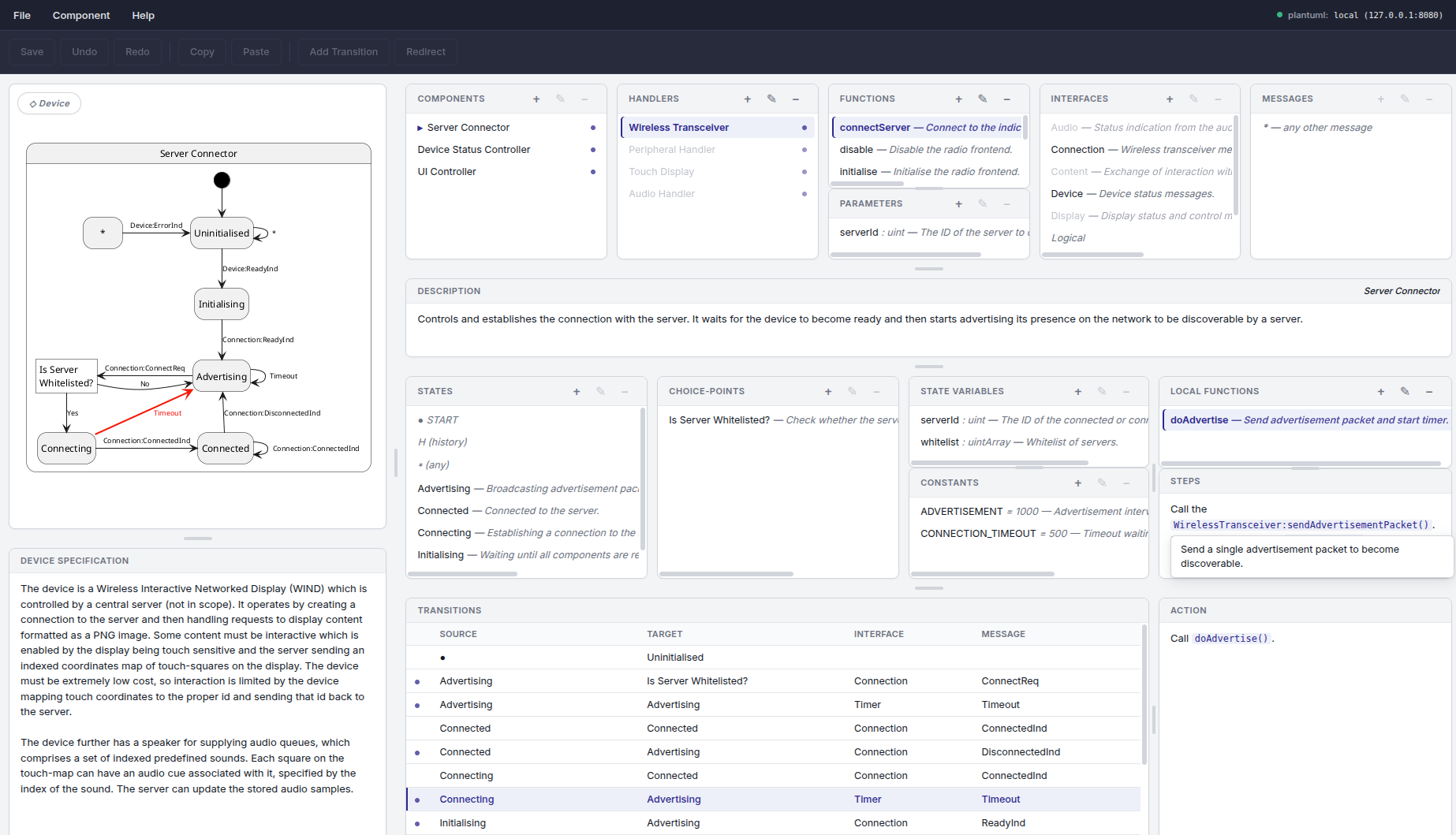
The canvas isn't a dumb image. A second PlantUML rendering runs in parallel with every element painted in a unique colour. A click on the canvas samples the pixel, looks up the element, and selects it. Near-misses are silently ignored — clicking between two states doesn't blow away your selection.

screenshot · editor in use
Stadiæ editor with a rendered state diagram on the left and the domain panel on the right
FIG. 1A multi-component diagram open in Stadiæ. The active component's state machine renders on the left; the device vocabulary and per-component lists are on the right.

Components, handlers, interfaces, and messages live in the device catalogue at the top of the right panel; all four are shared across the file. The Components list switches between components with one click — Node, Gateway, Session, whatever your subsystem contains. Each component has its own states, choice-points, transitions, and action notes, plus optional state variables, constants, and local functions in their own panels — all documentation-only fields that enrich the spec without touching the diagram. Handlers are device-level entities without a state machine — asynchronous edges to the outside world (radio, sockets, timers) that talk to components over interfaces or expose functions for components to call directly. Both interfaces and handlers dim in their lists when not connected to the active component, so you always see what's in scope at a glance.

Type definitions live one menu away under Device → Type definitions.... They're the device-wide reference of what each domain type means — a single name, a description, a free-text specification body. Parameter and state-variable type fields auto-link to their definition in the rendered spec when the cell text exactly matches a type name.

# 07 /// interaction

Keyboard-driven where it counts.

Ctrl + Ssave
Ctrl + Oopen
Ctrl + Nnew diagram
Ctrl + Z / Yundo / redo
Deldelete selected element(s)
Enteredit the selected element
change selected transition's connector direction; repeated or extends length
click canvasselect state / choice-point / transition directly on the rendered image
dbl-click tabrename component
undo coalescing. repeated arrow-key presses on the same transition collapse into one undo step. ten presses of — one undo. switch direction or transition and the session ends, committing the change.
# 08 /// workflow

Diagrams as source code.

The save format is compact, stable JSON. The PlantUML export is deterministic. Both round-trip losslessly. What that means in practice:

~/rtx-stack
$ git diff node.stadiae.json diff --git a/node.stadiae.json b/node.stadiae.json index 8f2c1a..3e4d7b 100644 --- a/node.stadiae.json +++ b/node.stadiae.json @@ -34,7 +34,8 @@ "source": "Advertising", "target": "CP_Whitelisted", "messages": [ - { "interface":"RTx", "name":"ConnectReq" } + { "interface":"RTx", "name":"ConnectReq", + "action":"post ConnectReq; arm 2s retry timer" } ], "connector":"Down", "length":1 $ git commit -m "Node: document RTx ConnectReq action" [main 4a3e21c] Node: document RTx ConnectReq action 1 file changed, 2 insertions(+), 1 deletion(-)

A pull request can contain a state-machine change the same way it contains a code change. Your reviewer sees exactly what moved. No screenshots, no "open the Visio file and look at page 3", no tribal knowledge about who last touched the diagram.

In your CI: run plantuml node.stadiae.puml to render the current diagrams into artefacts, attach them to release notes, check them into a documentation site. Stadiæ is a participant in your engineering pipeline, not a detour from it.

# 09 /// installation

There is no installation.

stadiae.html is the entire program. Put it wherever you put other tools — a shared network drive, an internal wiki page, your Downloads folder. Open it in a browser.

setup
$ curl -O https://www.computerguided.com/stadiae/stadiae.html $ open stadiae.html # or xdg-open, or double-click # that's it. no npm install, no docker pull, no account. # rendering goes through plantuml.com by default; # point to a local PlantUML server for offline use.

System requirements: a modern browser and network reachability to a PlantUML server for rendering. Exports work offline regardless — the .puml file generation is local.

Source, detailed design document, user manual, and issue tracker live on GitHub: github.com/computerguided/stadiae.

# 10 /// rendering

Public server or your own.

Stadiæ renders diagrams by sending PlantUML source to a PlantUML server. By default it uses the public server at plantuml.com, which works out of the box and requires no setup. When that's not appropriate — because you work offline, because your network blocks external services, or because you want your diagrams never to leave your machine — point Stadiæ at a local PlantUML server instead.

how the request URL is built
// online (default)
"https://www.plantuml.com" + "/plantuml/png/" + encoded

// local
"http://127.0.0.1:8080" + "/plantuml/png/" + encoded

Choose between the two via File → PlantUML server…, or click the small plantuml: badge at the bottom-right of the canvas. The dialog has two radio options and a Base URL field that's only active when Local is selected; your choice is saved in the browser and persists across sessions.

Setting up a local PlantUML server on Linux takes a few minutes — step-by-step instructions are on GitHub: local_plantuml_server.md ↗. Once it's running, point Stadiæ at its base URL (default http://127.0.0.1:8080) and the canvas re-renders immediately from the local server.

privacy. with a local server, PlantUML source never leaves your machine. useful when the diagrams describe embargoed work, or when organisational policy forbids external service calls.
> stadiae.html · open it, draw behaviour, commit the diff.
./stadiae.html →